In this article im going to explain what REST APIs are, the problems they solve, the benefits, drawbacks and how you can integrate your own API today in the power platform.
Note – the following integration doesn’t use catch error scopes and more advanced concepts. This is a beginner friendly intro to APIs, I will cover advanced topics in future.
What are REST APIs?
APIs stand for application programme interface. It’s a set of rules for a system to speak to another system. Lets say you have a TSB Banking App that you are using and you need to fetch data from Equifax for your credit score.
The API will allow TSB to communicate with Equifax. It will format the data that TSB will send across to Equifax so the Equifax can use the data to provide TSB with the information it needs.
Without the API, TSB cannot communicate outisde of itself. APIs are how we integrate systems together so we can fetch data from different places.
What Problems Do REST APIs Solve?
REST APIs solve the problem that disconnected systems have. Before we had APIs, data was typically silo’d within it’s own infrastructure which meant that we couldn’t seamlessly transfer data between systems.
You would need to copy and paste data over which can be messy, cause errors and took a lot of time
APIs solved this issue by allowing systems to connect together and exchange information with 1 another.
This speeds up workflows, optimises process’ by giving us the outcomes we want without making mistakes when manually copying data from one system to another. Sometimes information can be outdated, but APIs ensure that the data is up to date.
The Benefits of APIs
- Less Manual Work: we can retrieve data without needing to copy them between systems.
- Fewer errors: we can transfer data directly instead of retyping it
- More possibilities: we can access features and data that our app doesn’t provide
- Reuse: several apps or flows can use the same API instead of rebuilding the connection each time, which saves time.
The Drawbacks of APIs
- Extra Licensing Costs: we can wrap APIs in custom connectors and use HTTP connects, both require premium licenses in the power platform
- More Complicated Setup: you must configure authentication, permissions, request URLs and JSON correctly
- Ongoing Maintenance: If an API changes the way it consumes data, you will need to update your custom connector, flow or PARSE JSON action
How To Integrate An API into Power Platform
Heres a quick way for you to try and integrate the API into your power platform flow. This will be a recurring email that will notify you of the weather by fetching data from a free weather API using GET request.
- Go into power automate
- Create a new scheduled flow
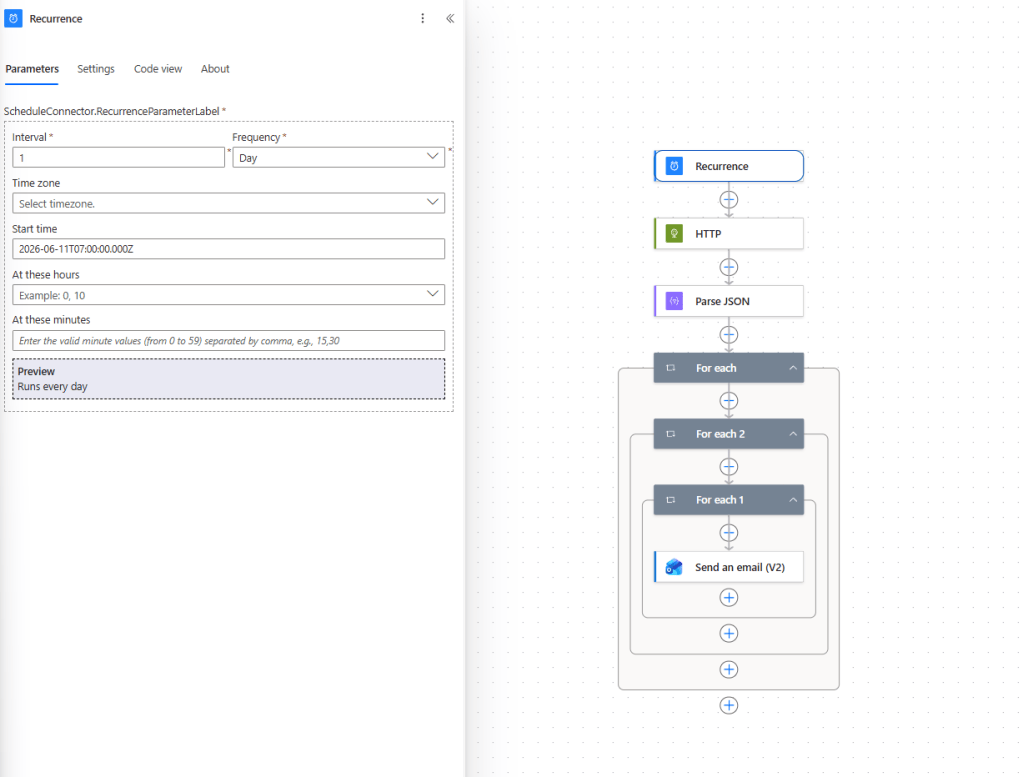
- Set recurrence to 1
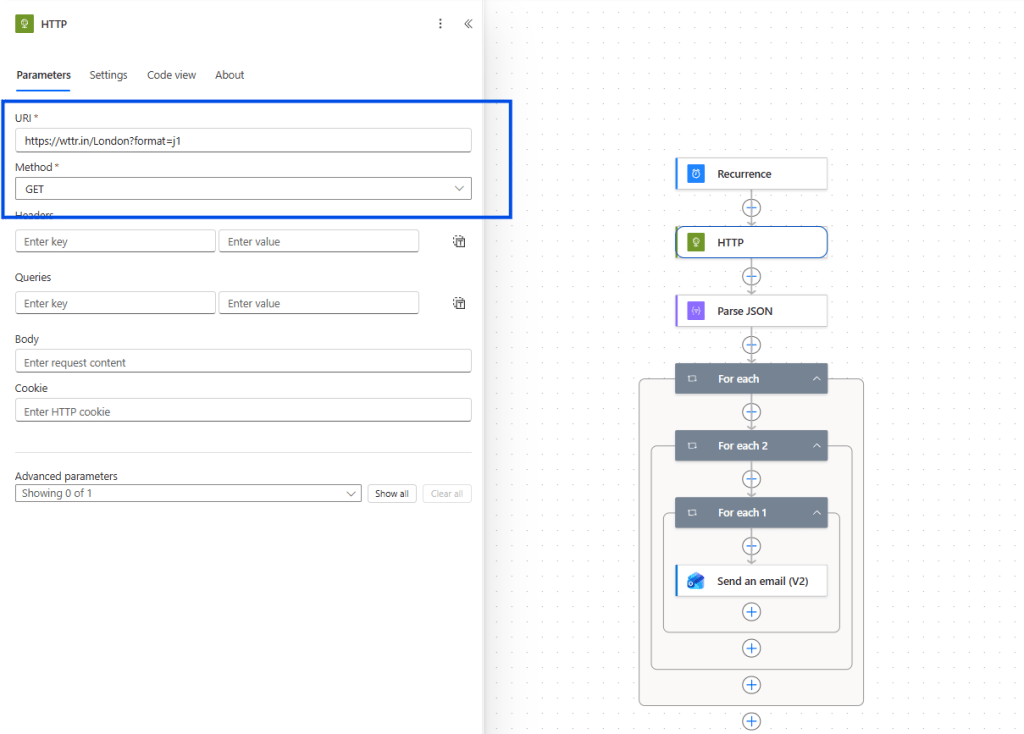
- Select “HTTP” action, set URL to ” https://wttr.in/London?format=j1 ”
- Set “Method” to GET
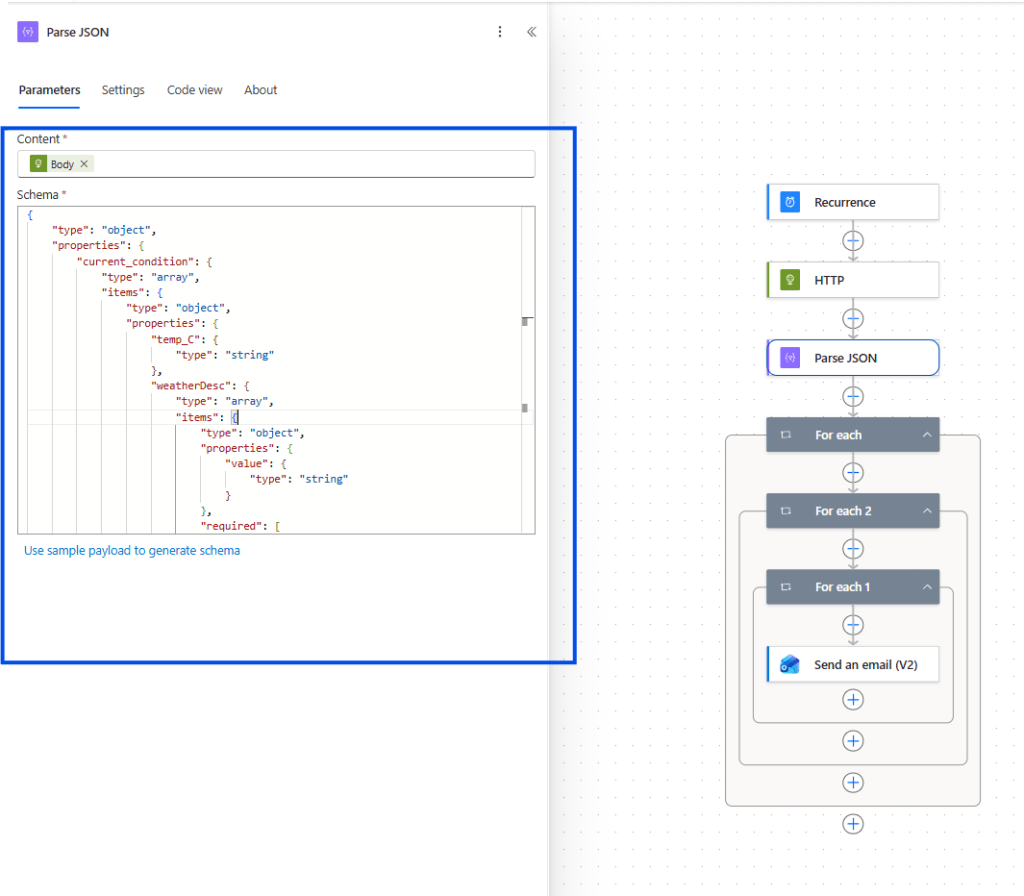
- Select “Parse JSON” action
- Set “Content” to ” body(‘HTTP’) ” (select from dynamic content)
- copy and paste the following JSON schema if required:
“type”: “object”,
“properties”: {
“current_condition”: {
“type”: “array”,
“items”: {
“type”: “object”,
“properties”: {
“temp_C”: {
“type”: “string”
},
“weatherDesc”: {
“type”: “array”,
“items”: {
“type”: “object”,
“properties”: {
“value”: {
“type”: “string”
}
},
“required”: [
“value”
]
}
},
“humidity”: {
“type”: “string”
}
},
“required”: [
“temp_C”,
“weatherDesc”,
“humidity”
]
}
}
}
}
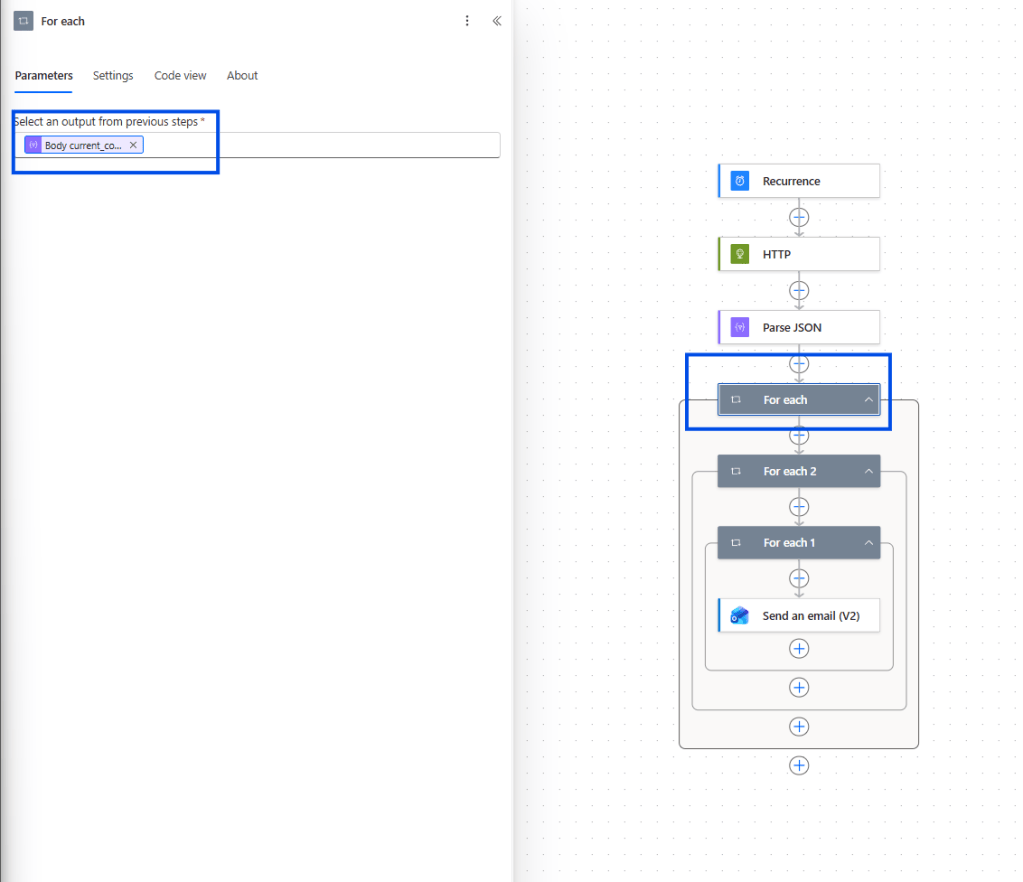
- set output for “For Each” action as outputs(‘Parse_JSON’)?[‘body’]?[‘current_condition’] (or select output of Parse JSON from dynamic content)
- for “For Each 2” set output as outputs(‘Parse_JSON’)?[‘body’]?[‘current_condition’]
- for “For Each 1” set output as items(‘For_each’)?[‘weatherDesc’]
- The naming of for each might be confusing so use the image above to guide you, and paste the output above into the correct for each action.
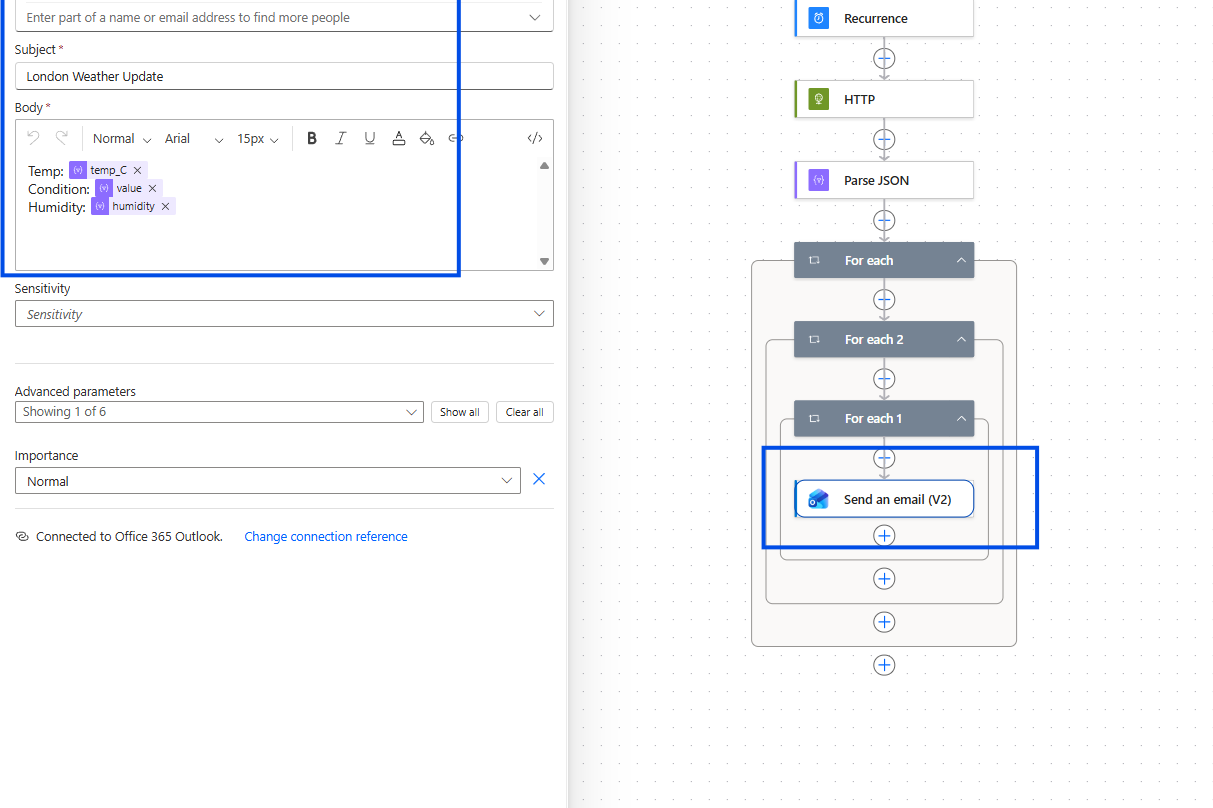
- enter the email address that the flow will send the API data to
- enter a subject such as ” London Weather Update “
- copy and paste the following structure and output into the “Body” :
- Temp: @{items(‘For_each’)?[‘temp_C’]}
- Condition: @{items(‘For_each_1’)?[‘value’]}
- Humidity: @{items(‘For_each_2’)?[‘humidity’]}
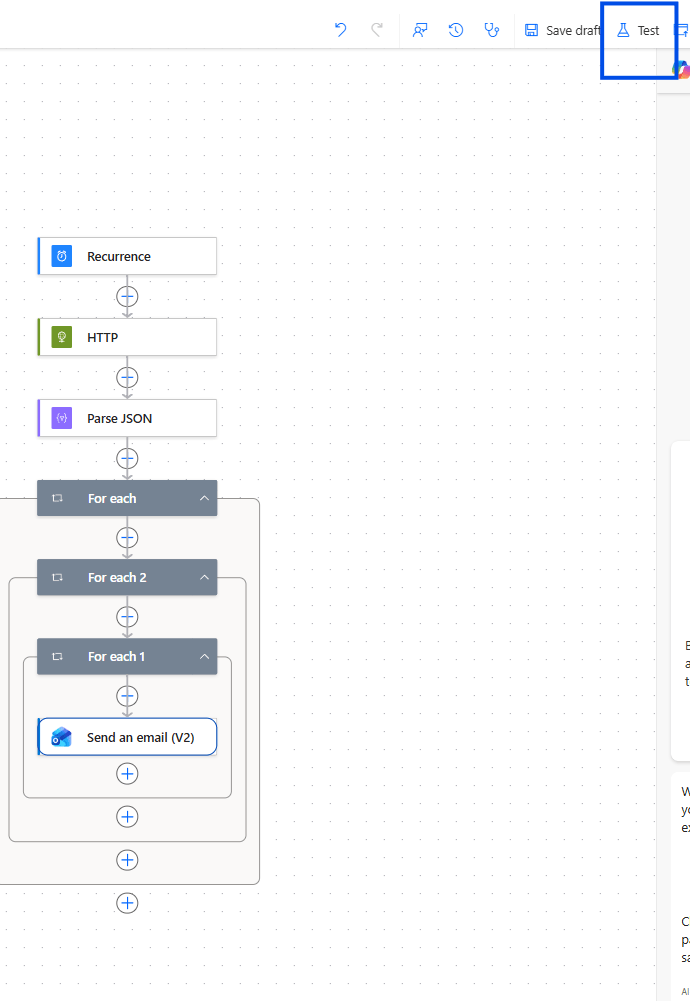
- Test out the flow by clicking the button at top of the page
- Click Manually -> Test
- Click continue to confirm any connections
- Click Run Flow and review the flow runs history
In future I will cover more advanced power automate architecture but now you know the basics and have integrated an API into your flow!


Leave a Reply